
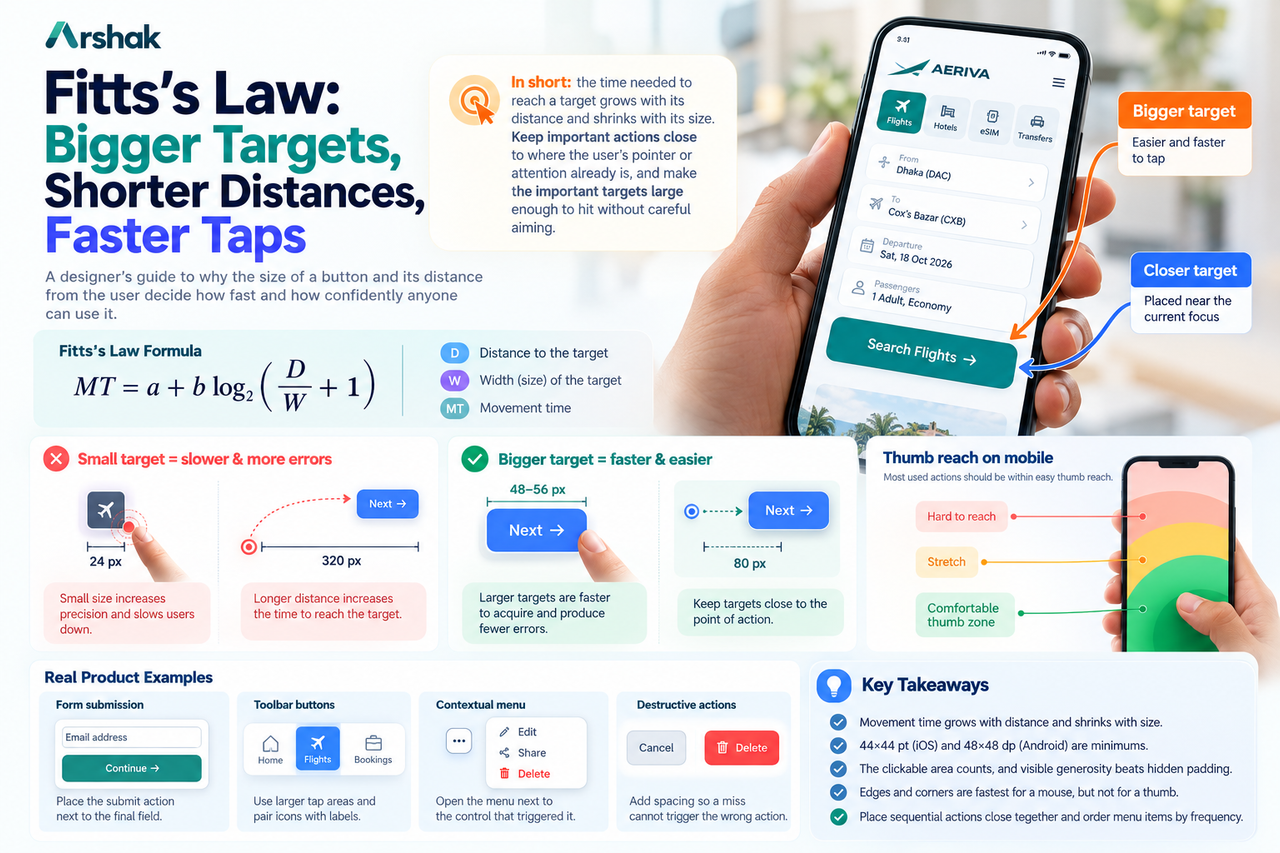
Fitts's Law: Bigger Targets, Shorter Distances, Faster Taps
A designer's guide to why the size of a button and its distance from the user decide how fast and how confidently anyone can use it.
In 1954, psychologist Paul Fitts ran a strikingly simple experiment: he asked people to tap back and forth between two metal plates, varying only the distance between the plates and the width of each one. The result was so consistent it is still taught in every human-computer interaction course: the time it takes to reach a target depends on how far away it is and how large it is.
Almost seventy years later, that finding explains everyday digital frustration: the hesitation over a tiny icon, the stretch to the far corner of the screen, the tap that lands on the wrong control. For designers, it turns vague advice like "make buttons big enough" into something measurable and defensible.
In short: the time needed to reach a target grows with its distance and shrinks with its size. In design terms: keep important actions close to where the user's pointer or attention already is, and make the important targets large enough to hit without careful aiming.
The Law in Plain Words
Fitts's Law states that the movement time to a target is a function of the distance to the target (D) and the width of the target (W). Two simple rules follow from it.
- The greater the distance, the longer the movement takes. Closer targets are faster to acquire.
- The larger the target, the shorter the movement takes. Bigger targets are faster to acquire.
The relationship is logarithmic: doubling the distance does not double the time. A movement has two phases: a fast, coarse approach across most of the gap, then a slow, careful final phase where the pointer homes in on the target. The smaller the target, the longer that careful final phase lasts.
Every small, distant control is a keyhole: it demands precision, slows the user down, and invites misses.
Why Designers Should Care
Every placement and size decision is a Fitts's Law decision. Where the primary action sits and how large it is decides how much time and concentration each use costs, multiplied by every user and every visit.
The stakes are highest on mobile. Fingers are far less precise than cursors, and the thumb reaches comfortably across only part of the screen. A control that is fine under a mouse can be a constant source of errors under a thumb, which is why the most used actions in good mobile apps sit within easy thumb reach and are generously sized.
Remember: every unit of distance costs the user time, and every unit of target size pays some of it back. Your two strongest levers are closeness to the user's current focus and a generous, well-spaced target.
Lever One: Make the Target Big Enough
The most direct application is also the most quoted: make targets big. Larger targets are faster to reach and produce fewer errors.
Use the platform minimums as floors, not ideals: 44 by 44 points on iOS, 48 by 48 dp on Android. Primary actions such as "Book now" or "Continue" deserve to be bigger still, ideally large enough to hit without looking directly at them.
Two refinements many designers miss. First, the clickable area counts, not the visible size: a small icon with generous invisible padding still looks small, so users slow down and aim anyway. Second, an icon paired with a label is a bigger target than an icon alone, and it removes ambiguity at the same time. You gain twice, as long as the whole combined area is clickable.
Lever Two: Keep Targets Close to the Point of Action
Distance is the lever designers control least often, and it matters just as much as size. A submit button belongs next to the last form field, not in the far top corner. A contextual menu should open next to the control that triggered it, not as a sheet at the opposite edge. When a task has a natural sequence, place the controls so the pointer or thumb travels the shortest sensible path.
Menu placement offers the law's most elegant trick: on desktop, targets on the screen edge are effectively infinite in one direction, because the cursor physically cannot overshoot them. That is why operating system menus have historically lived at the very top edge. Note the catch: this edge advantage belongs to mouse-driven interfaces. On touch screens, edge targets are slower to hit.
Fitts's Law in Real Products
Once you know the law, you see it everywhere. The table below maps common problems to Fitts's Law fixes.
| Common problem | Fitts's Law fix |
|---|---|
| Tiny icon-only buttons in a toolbar | Enlarge the tap area and pair icons with labels |
| Submit button far from the last form field | Place the submit action next to the final field |
| Contextual options appear far from the control that opened them | Open the menu next to the control that triggered it |
| Destructive action packed next to a common one | Add spacing so a miss cannot trigger the wrong action |
Where Designers Get It Wrong
- Hidden padding. Invisible tap areas reduce errors, not hesitation. If the visible target looks small, users still slow down to aim.
- Crowded targets. When controls sit too close together, overshooting one triggers another. Spacing is part of the law.
- The far-away primary action. A large button at the far end of a long scroll still forces a long journey.
- Copying desktop patterns to mobile. Edge targets that are instant with a mouse are awkward with a thumb. Design for the pointer your users actually use.
Put It to Work: Five Quick Rules
- Make the primary action the largest target on the screen.
- Place the next step where the user's attention already is.
- Pair icons with labels to enlarge the target and remove ambiguity at once.
- Space targets so that missing one cannot accidentally trigger another.
- Test the worst case: your own thumb, one-handed, on the smallest supported phone.
Key Takeaways
- ✓ Movement time grows with distance and shrinks with target size.
- ✓ 44 by 44 points (iOS) and 48 by 48 dp (Android) are floors, not ideals; primary actions deserve more.
- ✓ The clickable area counts, and visible generosity beats hidden padding.
- ✓ Screen edges and corners are the fastest targets for a mouse, but not for a thumb.
- ✓ Place sequential actions close together, and order menu items by frequency of use.
Conclusion
Fitts's Law is more than seventy years old, and it still predicts how users move through every screen you design. It will not tell you which button to draw, but it will tell you where to put it and how big to make it. Before placing any control, ask two questions: how far must the user travel, and how forgiving is the landing? Answer those well, and the interface stops asking for careful aiming and starts feeling effortless.
References and Further Reading
- Fitts's Law (Laws of UX)
- Fitts's Law and Its Applications in UX (Nielsen Norman Group)
- Fitts's Law (Interaction Design Foundation)
- Fitts's law (Wikipedia)

Written by
Md Arshak Hossain Zahid
UI/UX Designer · Founder of ArshakUIX
Practical insights on UX laws, usability, design systems, and product design.